
Best Chrome Extension for YouTube Summaries
Looking for the best Chrome extension for YouTube summaries? See what to look for and how Smart Recap turns any video into a recap in one click.
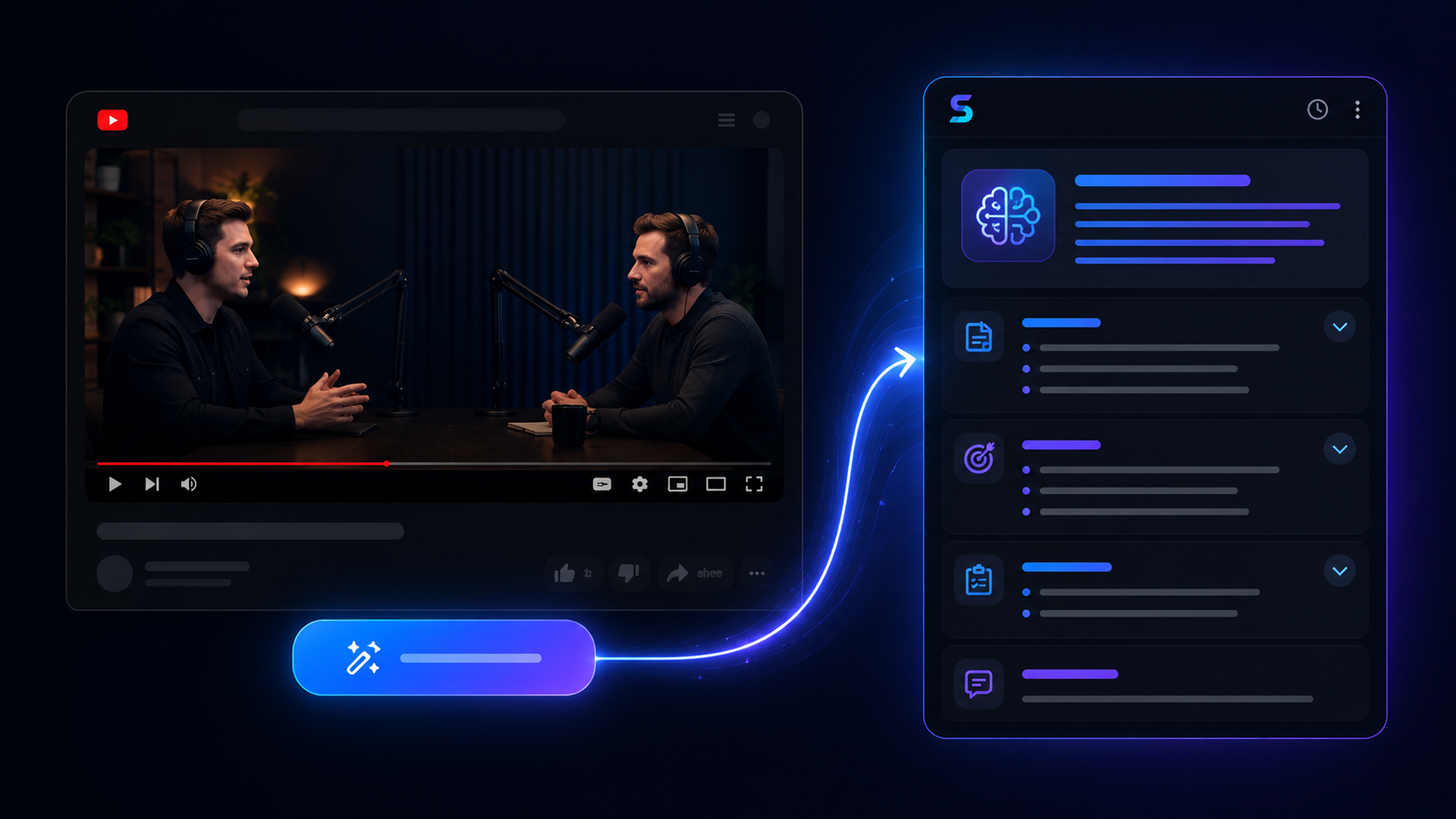
The Smart Recap Chrome extension is built specifically for this: it summarizes any YouTube video directly from your browser, supports multiple output languages, lets you ask follow-up questions, and keeps a saved history of every recap — all without leaving the YouTube tab.
Here's what actually matters when choosing a YouTube summary extension, and how Smart Recap covers each one.
What to look for in a YouTube summary Chrome extension
Most "summary" extensions only do one thing well, if that. Before installing one, check whether it:
Works directly on YouTube
Without copying links into a separate website or app.
Handles long videos
Not just short clips — lectures and two-hour podcasts shouldn't break it.
Supports more than one language
Both for the video and for the summary output.
Lets you ask follow-up questions
Instead of giving you a single static block of text.
Saves your summaries
So you're not regenerating the same recap twice.
A lot of extensions only nail the first point. That is the difference between "it technically works" and "it is actually worth keeping installed."
Why Smart Recap is the best Chrome extension for YouTube summaries
One click, right on YouTube
Smart Recap sits in your browser and works while you're already watching. No tab-switching, no copying a URL into another site — you generate the summary from the video itself.
Built for long, information-dense videos
Lectures, podcasts, interviews, webinars, and tutorials are exactly what Smart Recap is designed to handle. A two-hour podcast summarizes as cleanly as a 10-minute clip.
Multilingual by default
You can choose the output language before generating a summary, independent of the language the video is actually in. Useful for non-native speakers, multilingual teams, and international students.
Ask follow-up questions
A summary is a starting point, not the end of the conversation. After the recap is ready, you can ask about a specific detail and get an answer pulled directly from the video's content.
Keeps a history of everything you've summarized
When you're signed in, every summary is saved automatically. You can mark favorites and find them again later, which matters if you're researching across dozens of videos rather than watching one at a time.
How to install and use the Smart Recap Chrome extension
Open the extension page
Go to the Smart Recap page on the Chrome Web Store.
Add to Chrome
Click Add to Chrome and confirm the installation.
Open any YouTube video
Navigate to the video you want to summarize.
Click the Smart Recap icon
Generate a summary directly from the page.
Choose your language and read
Ask follow-up questions if you need more detail.
Who this extension is for
Students
Reviewing lectures and long explainer videos before exams.
Researchers
Screening interviews, talks, and panels to find what's worth watching in full.
Content creators
Checking competitor videos and topic coverage quickly.
Professionals
Catching up on webinars, demos, and training videos without blocking out the full runtime.
Frequently asked questions
Is there a free Chrome extension for YouTube summaries?v
Yes. The Smart Recap extension is free to install from the Chrome Web Store and works directly on YouTube.
Does the extension work on long videos like podcasts and lectures?v
Yes. Smart Recap is built for long-form, information-dense content — podcasts, lectures, interviews, and webinars all summarize the same way a short clip would.
Can I get the summary in a different language than the video?v
Yes. You can choose your preferred output language before generating the summary, regardless of the video's original language.
Can I ask questions about the video after I get the summary?v
Yes. Once the summary is ready, you can ask follow-up questions and get answers based on the video's content, without rewatching it.